
Email Course Day 3: Write the welcome sequence
Write the welcome sequence
Today you'll write the three emails every new person gets when they join your list, and set Kit to send them on its own. Someone who just signed up is paying more attention to you right now than they ever will again.
1The one paid step
Kit's free plan doesn't include sequences (emails that send on their own) or automations. The Creator plan does. On kit.com/pricing today it's $390 a year, or about $33 a month, at 1,000 subscribers. Check the pricing page when you upgrade, since Kit sets it by list size.
I think of it as the first line of your marketing budget. Before the poster, before the trailer, before the festival fees. A welcome sequence works every day of the year, even while you're asleep.
- Click Settings at the bottom of the left-hand menu, then Account & Billing, and upgrade to Creator.
- Or skip ahead to step 2: when you try to create a sequence on the free plan, Kit shows you the upgrade options right there.
You opened your account at kitforcreators.com, which is my referral link. If you upgrade, Kit pays me a commission, and it costs you nothing extra.
2Create the sequence
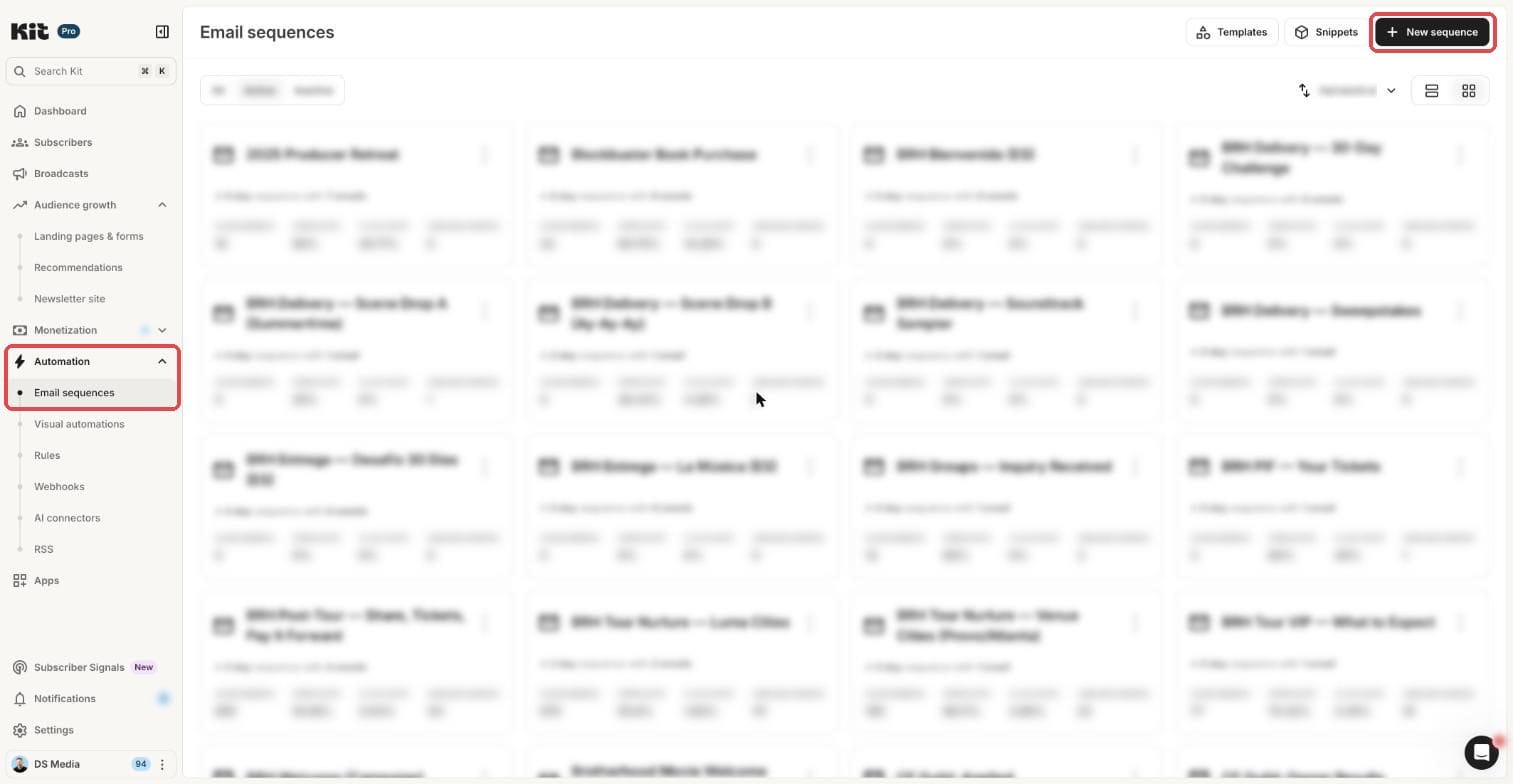
- In the left-hand menu, click Automation, then Email sequences.
- Click the black + New sequence button at the top right and pick a starting template. You can change it later.
- Click the pencil icon at the top left and name it Welcome. Only you see this name.
3Write the three emails
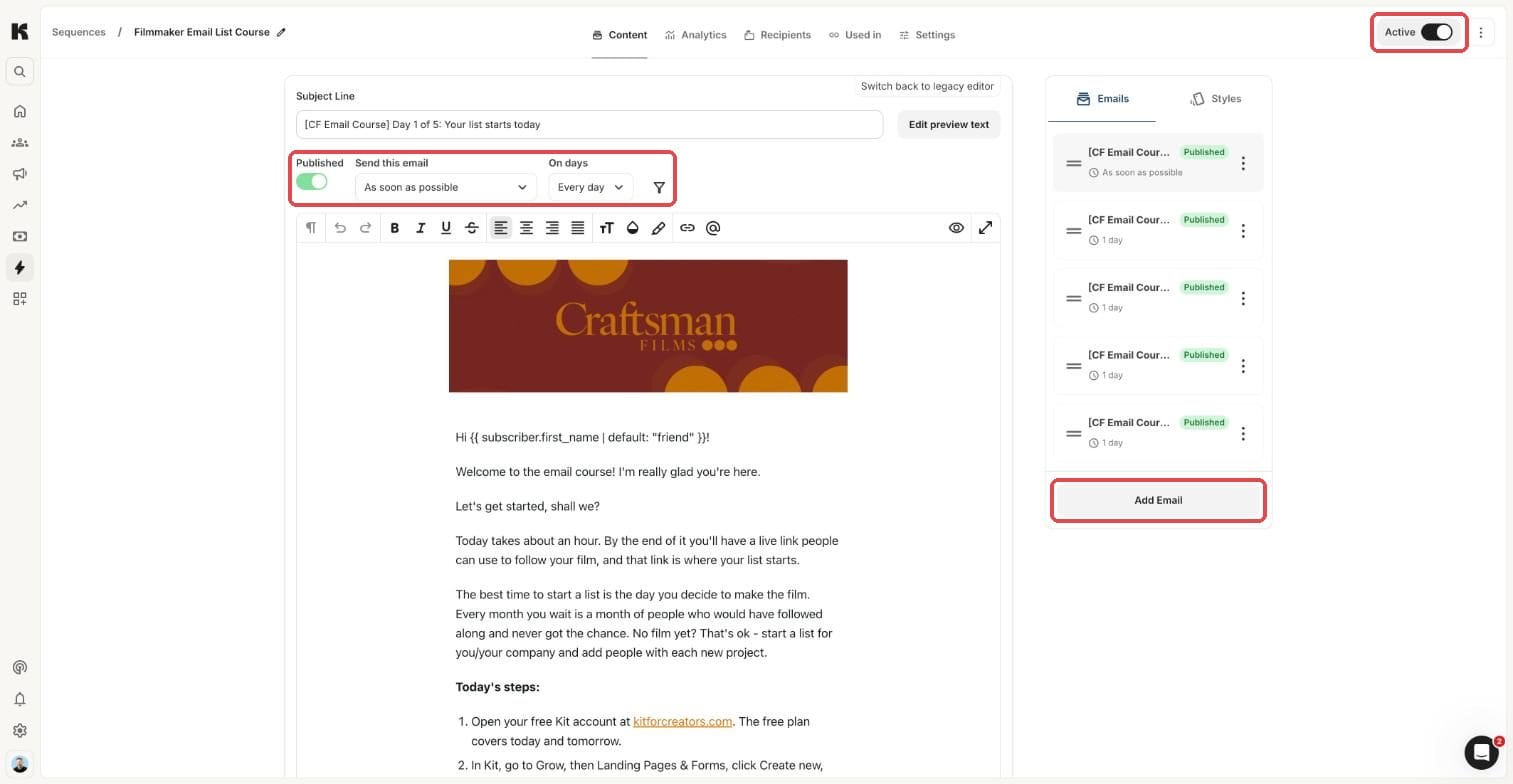
- The first email is open. Type the Subject Line and write the body using email 1 below.
- Next to Send this email, leave it on As soon as possible.
- Turn on the Published toggle. An email that isn't published never sends.
- Click Add Email in the right-hand column for email 2, and again for email 3.
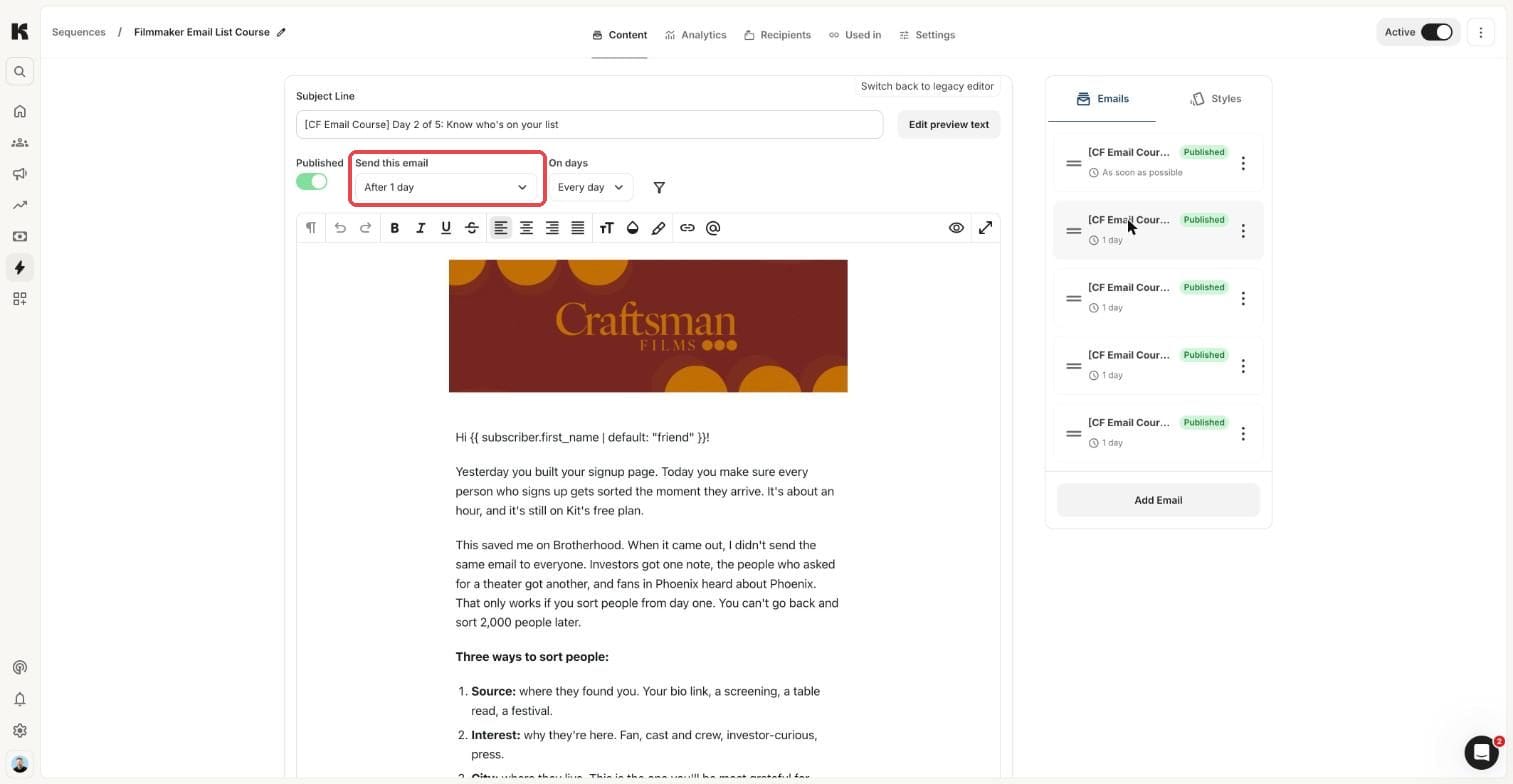
- For email 2, set Send this email to 3 days after the previous email. For email 3, set it to 4 days. Delays count from the email before, so email 3 lands a week after someone signs up.
- Publish emails 2 and 3 with their toggles too.
The templates:
The Claude prompt:
4Switch the sequence on
- Flip the Active toggle at the top right of the sequence, and confirm with Set to active.
5Send every new signup into it
A Rule is Kit's simplest automation: when something happens, do something.
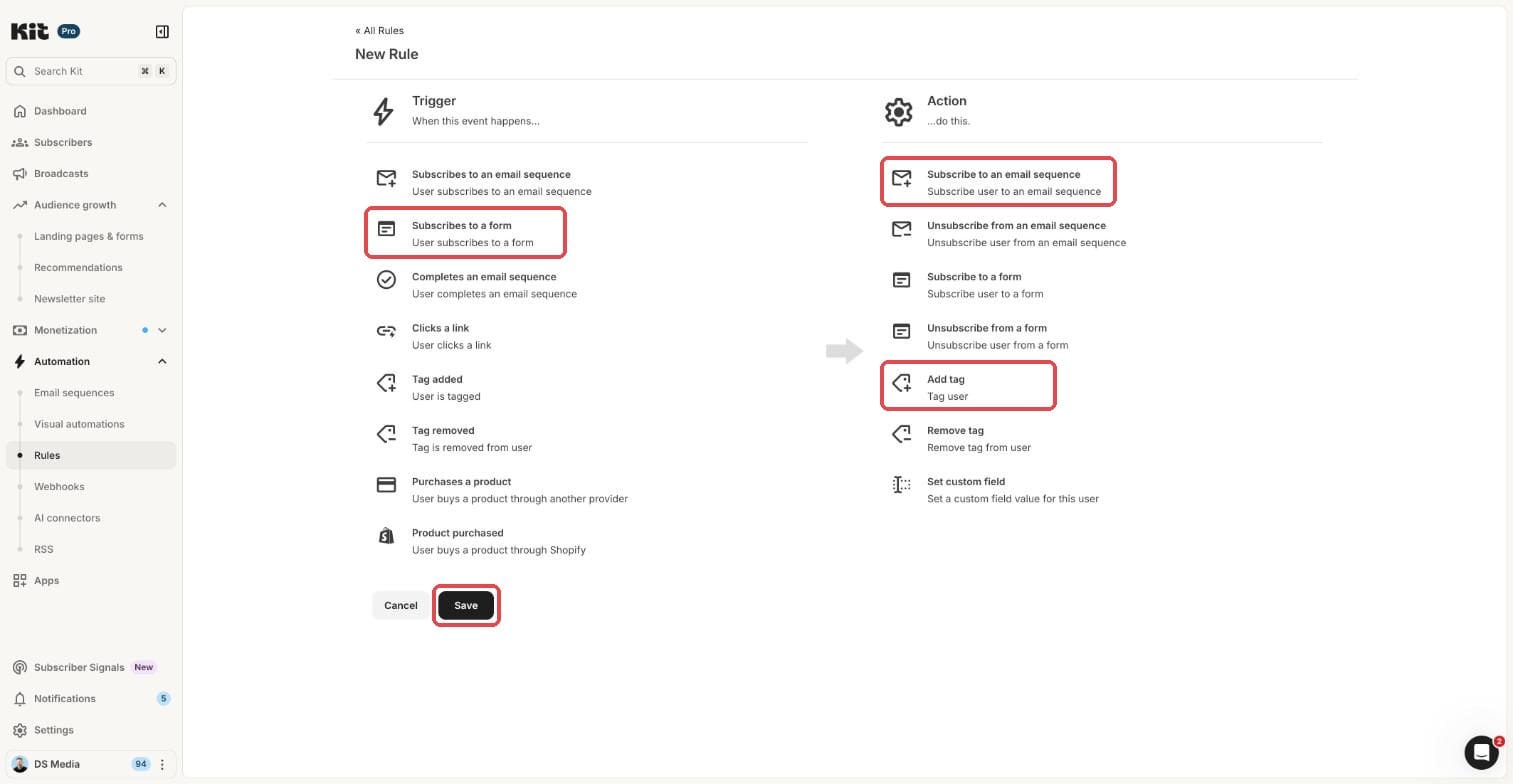
- Click Automation, then Rules, then New rule.
- Under Trigger, click Subscribes to a form and pick your signup page.
- Under Action, click Subscribe to an email sequence and pick Welcome.
- Click Save. Saving switches the rule on.
6Tag people by where they found you
Remember the Source tags from yesterday? Now they can work on their own.
- Make a second signup page for screenings and events: go to Audience growth, then Landing pages & forms, click the three dots on your page, and choose Duplicate. Rename the copy "Screening signup" and publish it.
- Create a rule: Subscribes to a form (your original page) → Add tag → Source - Bio Link. Save.
- Create another: Subscribes to a form (Screening signup) → Add tag → Source - Screening. Save.
- Add one more rule so screening signups get the welcome emails too: Subscribes to a form (Screening signup) → Subscribe to an email sequence → Welcome.
- Sign up on each page with a spare email address and check that the right tag shows up and email 1 arrives.
Not in the course yet? Start the free 5-day email course. kitforcreators.com is my referral link. If you ever upgrade, Kit pays me a commission, and it costs you nothing extra.